> ## Documentation Index
> Fetch the complete documentation index at: https://cubed3-claude-gallant-ramanujan-ngzf3u.mintlify.site/llms.txt
> Use this file to discover all available pages before exploring further.
# Data Model IDE
> Covers the browser code editor for full data modeling features, branch-based dev APIs, and testing model changes before they reach production traffic.
Data model editor provides the code-first experience for building and enhancing the
[data model][ref-data-modeling] of your semantic layer from within your web browser.
Unlike the [Visual Modeler][ref-visual-model] editor, it provides the freedom to use all
available data modeling features at the expense of a code-centric experience.
Cube Cloud can create branch-based development API instances to quickly test
changes in the data model in your frontend applications before pushing them into
production.
## Development Mode
In development mode, you can safely make changes to your project without
affecting production deployment. Development mode uses a separate Git branch and
allows testing your changes in Playground or via a separate API endpoint
specific to this branch. This development API hot-reloads your data model
changes, allowing you to quickly test API changes from your applications.
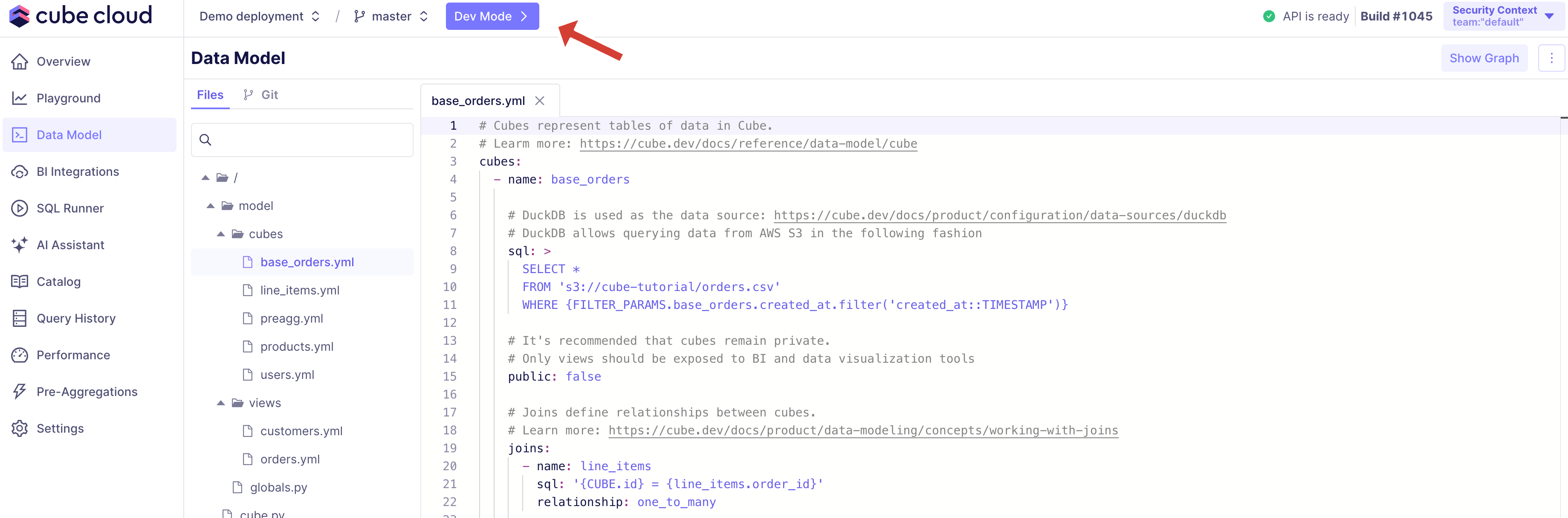
To enter development mode, navigate to the **Data Model** screen and
click **Dev Mode**.
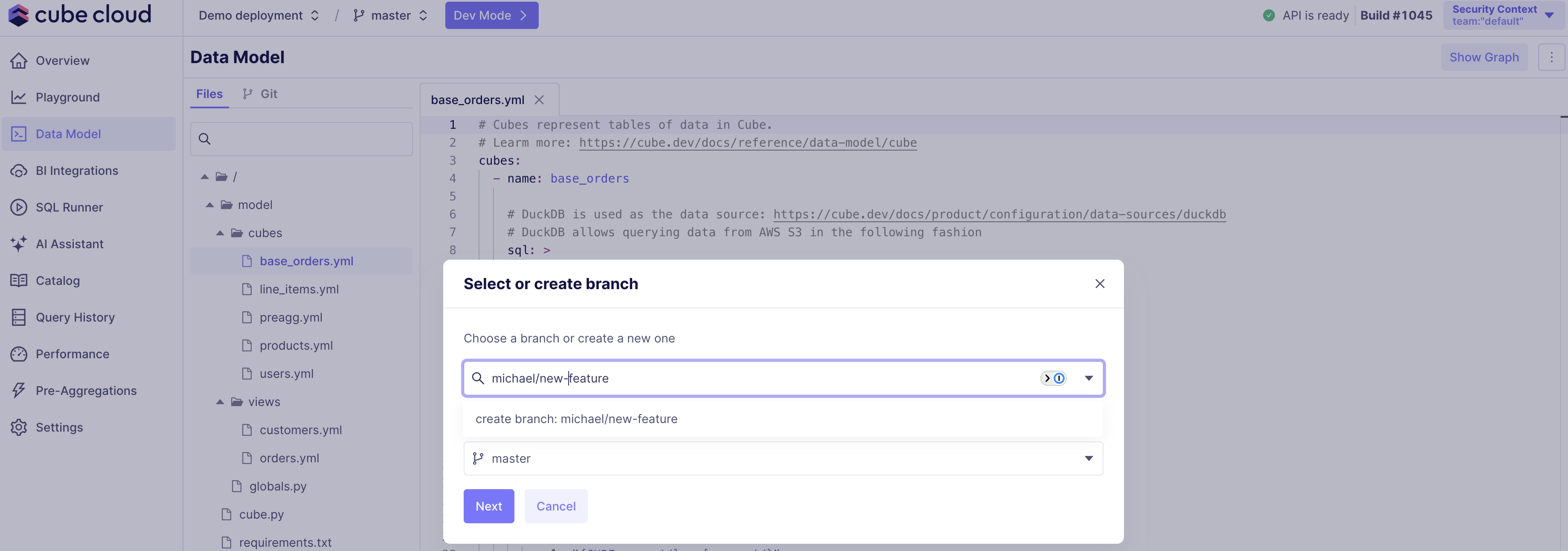
 If you are entering development mode from the main branch, you will be asked to
choose an existing branch or create a new one. You can configure whether it's possible
to commit directly to the main branch in the deployment settings.
If you are entering development mode from the main branch, you will be asked to
choose an existing branch or create a new one. You can configure whether it's possible
to commit directly to the main branch in the deployment settings.
 When development mode is active, the status of the development API will be shown
at the top of the screen. After any changes to the project, the API
will hot-reload, and the API status will indicate when it's ready.
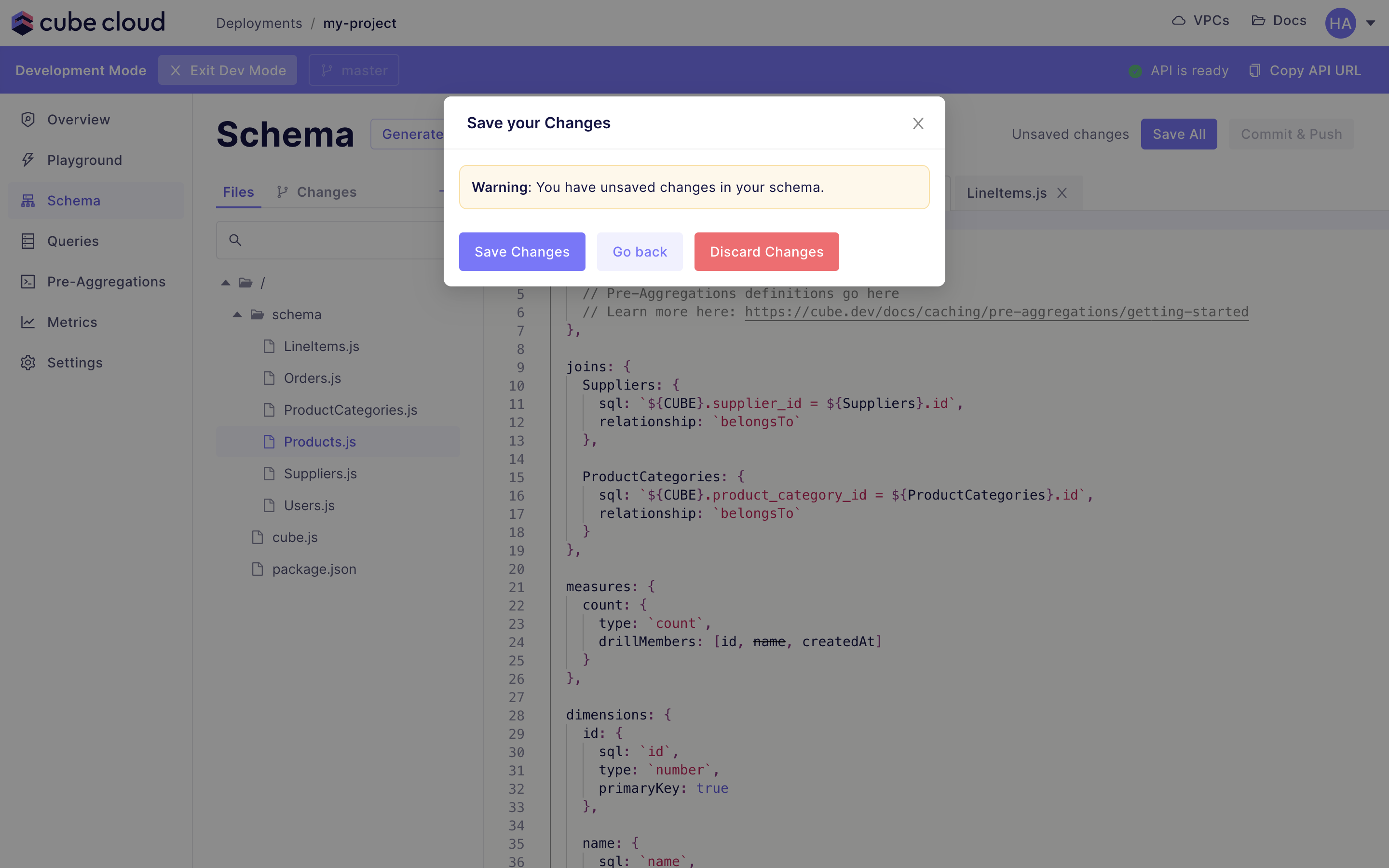
You can exit development mode by clicking **Dev Mode X** in the purple banner. If
you've been editing a data model and navigate away, Cube Cloud will warn you if
there are any unsaved changes:
When development mode is active, the status of the development API will be shown
at the top of the screen. After any changes to the project, the API
will hot-reload, and the API status will indicate when it's ready.
You can exit development mode by clicking **Dev Mode X** in the purple banner. If
you've been editing a data model and navigate away, Cube Cloud will warn you if
there are any unsaved changes:
 ## Git integration
To add more Git branches to your Cube Cloud deployment and/or switch between
them, click the branch name in the status bar:
## Git integration
To add more Git branches to your Cube Cloud deployment and/or switch between
them, click the branch name in the status bar:
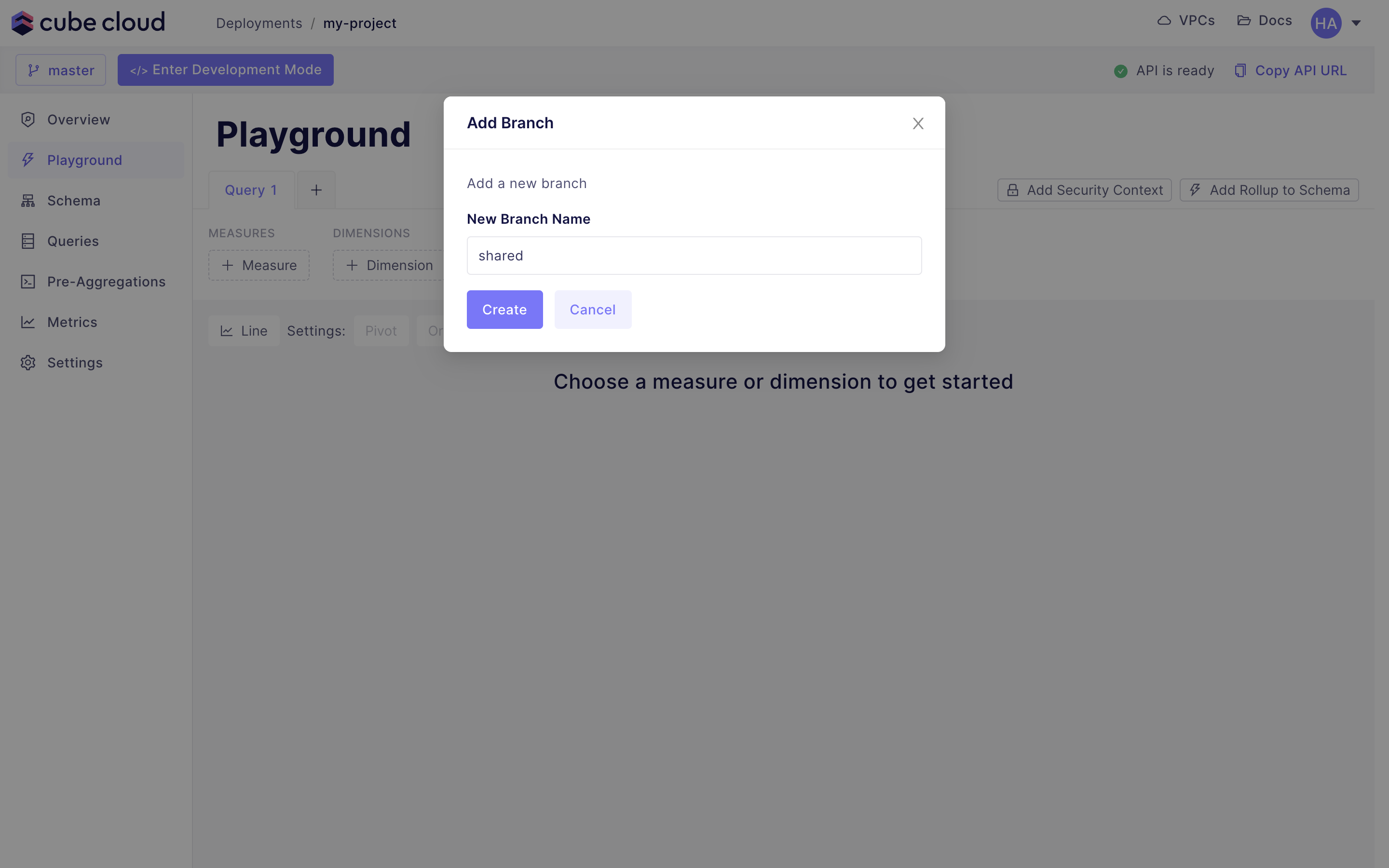
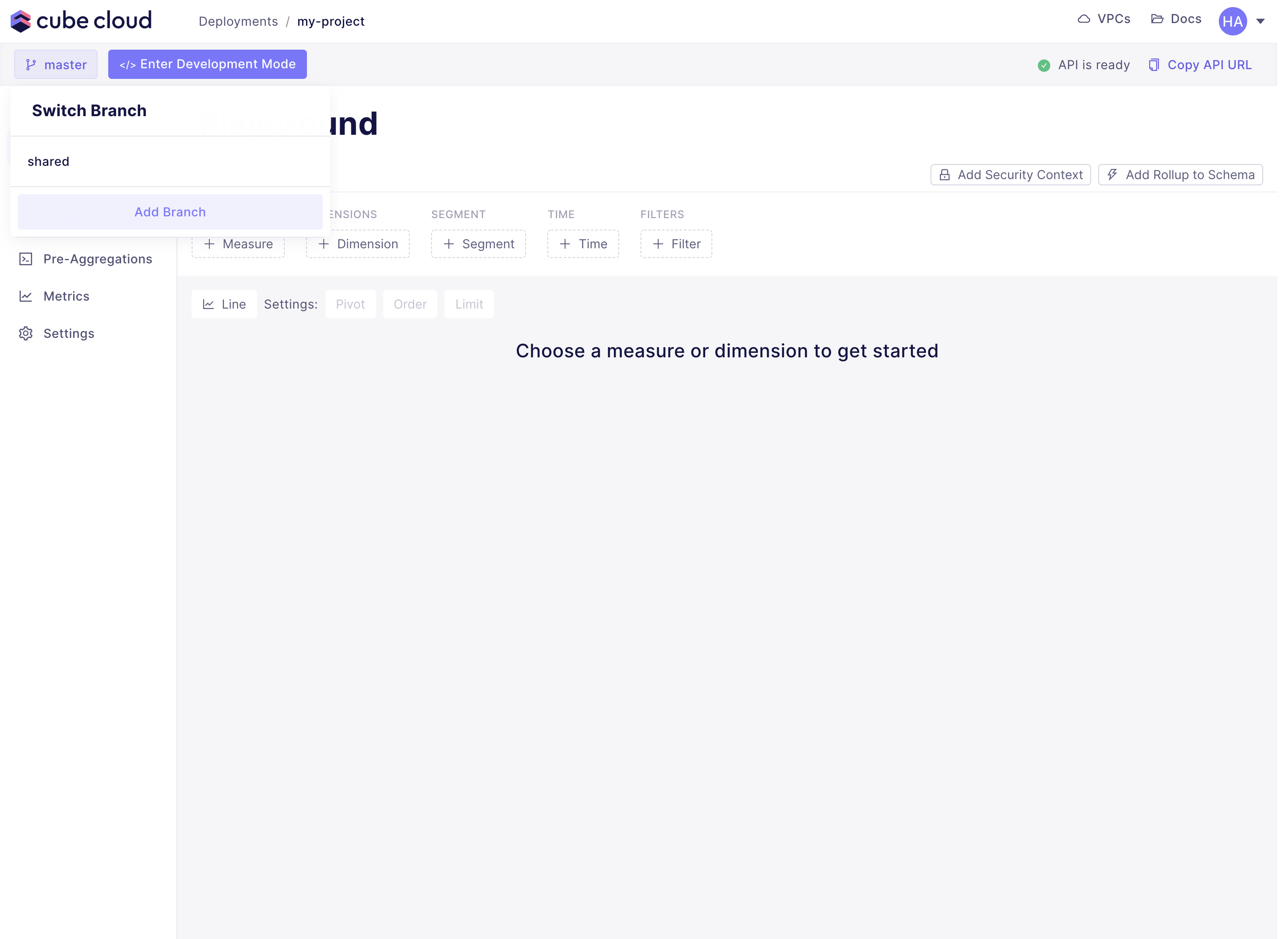 Speaking of Git branches, you can now easily add and remove branches with the
same switcher; click **Add Branch** and enter a name for the new branch
in the popup:
Speaking of Git branches, you can now easily add and remove branches with the
same switcher; click **Add Branch** and enter a name for the new branch
in the popup:
 By default, the new branch forks off whichever branch you currently have
checked out. To fork from a different one instead, choose **Create branch
from…** in the branch switcher, name the new branch, and pick its source —
any of Cube's branches, or a remote-only branch that hasn't been checked out
in Cube yet.
These branches are shared, meaning everyone who has access to the deployment can
see and edit them. This makes them extremely useful for out-of-band experiments
where you can quickly test things in Cube Cloud without having to go through a
CI/CD process.
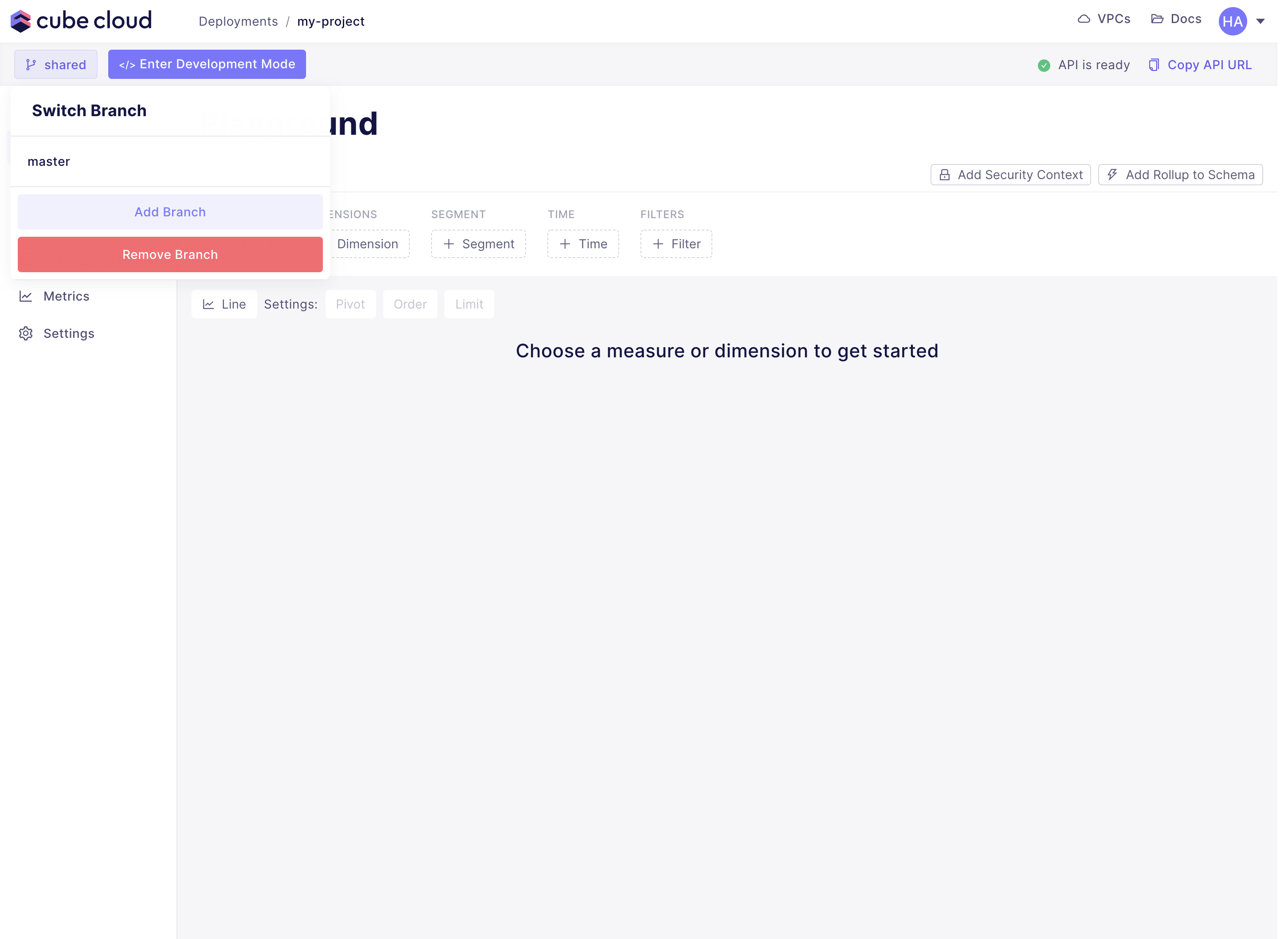
Unused branches can also be deleted. Ensure you are already on the branch you
want to delete, then open the switcher and click **Remove Branch**:
By default, the new branch forks off whichever branch you currently have
checked out. To fork from a different one instead, choose **Create branch
from…** in the branch switcher, name the new branch, and pick its source —
any of Cube's branches, or a remote-only branch that hasn't been checked out
in Cube yet.
These branches are shared, meaning everyone who has access to the deployment can
see and edit them. This makes them extremely useful for out-of-band experiments
where you can quickly test things in Cube Cloud without having to go through a
CI/CD process.
Unused branches can also be deleted. Ensure you are already on the branch you
want to delete, then open the switcher and click **Remove Branch**:
 To share a link to the branch you're currently viewing, click the copy-link
button next to the branch switcher. It copies the current URL with
`?branch=` appended; opening that link switches the recipient to
the same branch.
## Generating data model files
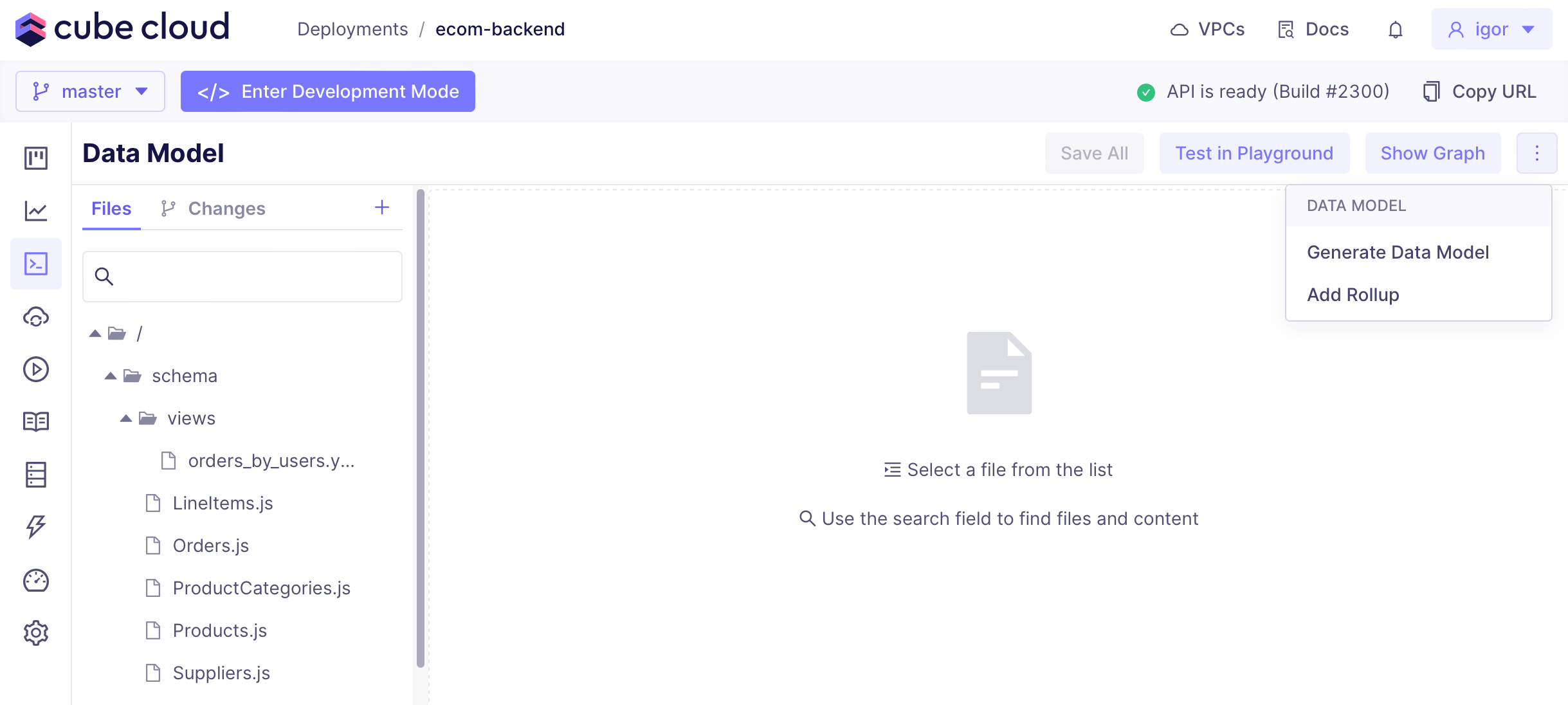
You can generate data model files when [creating a new
deployment][ref-creating-deployment] or at later moment. To open the data model
wizard, click on the **...** button on the right and select **Generate
data model**:
To share a link to the branch you're currently viewing, click the copy-link
button next to the branch switcher. It copies the current URL with
`?branch=` appended; opening that link switches the recipient to
the same branch.
## Generating data model files
You can generate data model files when [creating a new
deployment][ref-creating-deployment] or at later moment. To open the data model
wizard, click on the **...** button on the right and select **Generate
data model**:
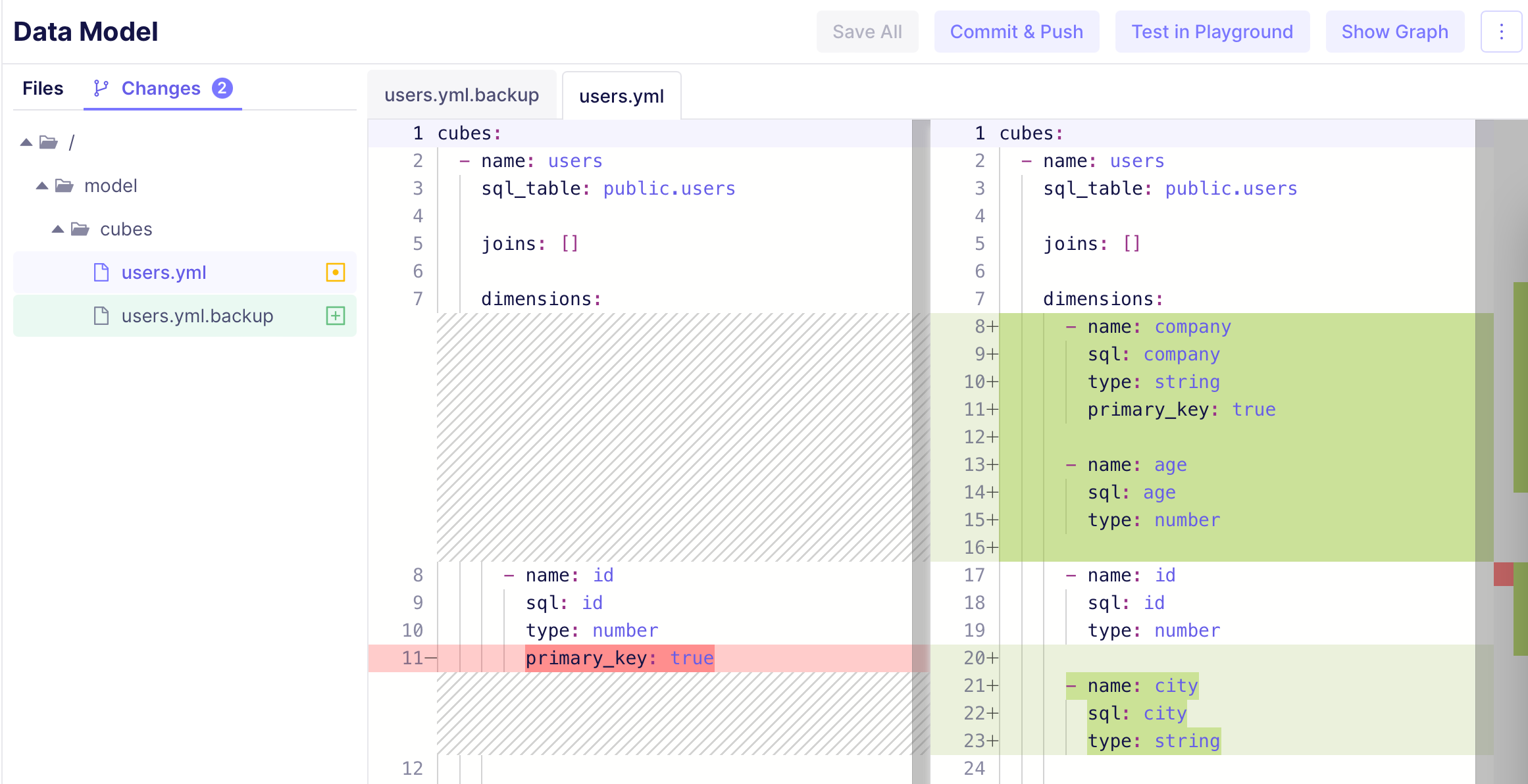
 It is safe to generate data model files for tables that already have matching cubes.
In that case, existing files will be renamed by appending `.backup` to their names.
You would also be able to review changes to files on the **Changes** tab:
It is safe to generate data model files for tables that already have matching cubes.
In that case, existing files will be renamed by appending `.backup` to their names.
You would also be able to review changes to files on the **Changes** tab:
 [ref-data-modeling]: /docs/data-modeling/overview
[ref-creating-deployment]: /admin/deployment#creating-a-new-deployment
[ref-visual-model]: /docs/data-modeling/visual-modeler
[ref-data-modeling]: /docs/data-modeling/overview
[ref-creating-deployment]: /admin/deployment#creating-a-new-deployment
[ref-visual-model]: /docs/data-modeling/visual-modeler